SCCM 2012 now available as RC download

System Center 2012 Configuration Manager and System Center 2012 Endpoint Protection Release Candidates


download link http://www.microsoft.com/download/en/details.aspx?displaylang=en&id=27841

Please note: System Center 2012 Configuration Manager and System Center 2012 Endpoint Protection are now provided as a single installation package.
System Center 2012 Configuration Manager helps you to empower people to use the devices and applications they need to be productive, while maintaining corporate compliance and control. As more and more consumer devices enter the workplace, IT faces the challenge of delivering a rich experience to users across multiple devices – both personal and corporate-owned – without giving up the control needed to protect company assets. Configuration Manager provides a unified infrastructure for mobile, physical and virtual environments. Configuration Manager also helps you to be more efficient with simplified administrative tools and improved compliance enforcement.
New features in the release candidate include:

  • Improved endpoint protection functionality, with integrated setup, management and reporting of System Center 2012 Endpoint Protection. (see below)
  • Improved application catalog design that provides a better, more responsive experience when requesting and downloading applications.
  • New support for Windows Embedded devices, including Windows Embedded 7 SP1, POS-Ready 7, Windows 7 Think PC, and Windows Embedded Compact 7.
  • Improved compliance enforcement and tracking, with the ability to create dynamic collections of baseline compliance and generate hourly compliance summaries.
  • Platform support for deep mobile device management of Nokia Symbian Belle devices. Pending a platform update by Nokia later this calendar year for these devices, customers will be able to try out the management of Nokia devices with Configuration Manager.

System Center 2012 Endpoint Protection (previously known as Forefront Endpoint Protection 2012) protects client and server operating systems against the latest threats using industry-leading malware detection technologies. It is built on System Center 2012 Configuration Manager, giving customers a unified infrastructure for client security and compliance management. This shared infrastructure lowers ownership costs while providing improved visibility through user-centric malware reporting and control over endpoint management and security.
New features in the release candidate include:
  • Support for System Center 2012 Configuration Manager, including integrated setup, management, and reporting.
  • Role-based management across security and operations.
  • Improved alerting and reporting, with near real-time and user-centric data views.
  • More efficient delivery of signature updates using new automatic software deployment model.

Need more information? See the System Center 2012 Configuration Manager and System Center 2012 Endpoint Protection product details pages.

Top of pageTop of page

System requirements

Supported Operating Systems: Windows Server 2003 R2 x64 editions, Windows Server 2008, Windows Server 2008 R2

Site System Requirements

  • Site servers and site roles require 64-bit OS (distribution points are an exception)
Branch Distribution Points
  • Branch distribution points have been deprecated and replaced with standard distribution points that can be hosted on Configuration Manager 2012 client operating system platforms, with the exception of Windows XP Professional Service Pack 3 and Windows XP Tablet PC SP3
  • Standard DPs can run on Windows Server 32-bit but will not support advanced functionality
Server Operating System Requirements
  • Windows Server 2008 (64-bit) and Windows Server 2008 R2
  • Distribution points can run on Windows Server 2003
Client Operating System Requirements
  • Windows XP professional SP3 – x86 and Windows XP SP2 pro for 64 bit systems
  • Windows Vista SP2 (x86,x64)
  • Windows Server 2003 R2 SP2 (x86,x64)
  • Windows Server 2008 (x86,x64)
  • Windows Server 2008 R2 (x86,x64)
  • Windows 7 (x86,x64)
Database Requirements
  • SQL Server 2008 SP2 with CU 6
  • SQL Server Express 2008 r2 WITH SP1 and CU 3 is supported only on secondary sites
  • QL Reporting Services is ONLY reporting solution
For Supported Configurations information, visit http://technet.microsoft.com/en-us/library/gg682077.aspx.

Top of pageTop of page

Instructions

Click the Download button next to the file most appropriate for your needs.
For System Center 2012 Configuration Manager Release Candidate use the file - ConfigMgr_2012_RC1_ENU_7678.exe

  1. Do one of the following:
    • To download the media image, click Run
    • To save the download to your computer to install at a later time, click Save.
    • To cancel the installation, click Cancel.
  2. The media will be downloaded into a folder and then you can run splash.hta in the root of the folder to begin Setup.

Some useful SCCM Patch Management - Custom Reports

http://pleasepressanykey.blogspot.com/2010/08/sccm-patchmgmt-custom-reports.html

DP Package Utility – For Remove all packages from a Specific DP

With the help of this utility we can add & remove Packages from a Specific DP

http://www.myitforum.com/inc/arts/12171Setup.zip

For this Utility required .NET Framework 2.0

"+" In AutoCAD files not able to Download at client side

This can be fixed with……….


investigated this and turns out this is an IIS request filtering issue with urls containing "+" character. Basically you get a 404.11 error since the url is double encoded. The following KB article presents a workaround to set "allowDoubleEscaping" to true. Note that by default this is disabled and you need to set this explicitly.

http://support.microsoft.com/default.aspx/kb/942076

After I enabled this I was able to download files from directories containing "+" character. Can you try this out and let me know if it resolves you issue.


To resolve this problem, follow these steps.
Note After you follow these steps, the security level of the server that is running IIS may be reduced. Therefore, before you set the allowDoubleEscaping property to True, consider the risk that is involved.

  1. Click Start, type Notepad in the Start Search box, right-click Notepad in the Programs list, and then clickRun as administrator. If you are prompted for an administrator password or for a confirmation, type your password, or click Continue.
  2. On the File menu, click Open, type %windir%\System32\inetsrv\config\applicationHost.config in the File name box, and then click Open.
  3. In the ApplicationHost.config file, locate the requestFiltering XML element.
  4. Change the value of the allowDoubleEscaping property to True. To do this, use code that resembles the following example code.

    <requestFiltering allowDoubleEscaping="true">

  5. On the File menu, click Save.
  6. Exit Notepad.
Important When you enable double escaped sequences, the security level of the server that is running IIS may be decreased.
The previous steps will directly edit the applicationHost.config file and configure this setting at the server level. You can also use the Appcmd command to configure this setting. To do this, follow these steps:

  1. Click Start, click Run, and then type cmd in the Open box.
  2. Type the following command, and then press ENTER:

    C: CD %windir%\system32\inetsrv


  3. Run one of the following commands:


    • Appcmd set config "Default Web Site" /section:system.webServer/Security/requestFiltering -allowDoubleEscaping:True

      Note This will configure this setting only for the "Default Web Site" by creating or editing the Web.config file in the root folder of the "Default Web Site."


    • appcmd set config "Default Web Site" /section:system.webServer/Security/requestFiltering -allowDoubleEscaping:True /commit:appHost

      Note This will configure this setting only for the "Default Web Site" in the applicationHost.config file by using a location tag.

Wake On LAN Vs OBT (Out of band management)


http://technet.microsoft.com/en-us/library/cc161828.aspx


Feature Advantage Disadvantage

Wake On LAN

Does not require that the site is running Configuration Manager 2007 SP1.

Supported by many network adapters.

UDP wake-up packets are quick to send and process.

Does not require a PKI infrastructure.

Does not require any changes to Active Directory Domain Services.

Supported on workgroup computers, computers from another Active Directory forest, and computers in the same Active Directory forest but using a noncontiguous namespace.

Less secure solution than out of band management because it does not use authentication or encryption. If subnet-directed broadcast transmissions are used for the wake-up packets, this has the security risk of smurf attacks. For more information about securing subnet-directed broadcast transmissions with Wake On LAN, see Secure Routers for Subnet-Directed Broadcasts for Wake On LAN.

Might require manual configuration on each computer for BIOS settings and adapter configuration.

No confirmation that computers are woken up.

Wake-up transmissions as multiple UDP packets can unnecessarily saturate available network bandwidth.

Cannot wake up computers interactively.

Cannot return computers to sleep state.

Management features are restricted to waking up computers only.

Out of band management

More secure solution than Wake On LAN because it provides authentication and encryption using standard industry security protocols. It can also integrate with an existing PKI deployment, and the security controls can be managed independently from the product.

Supports automatic centralized setup and configuration (provisioning).

Established transport session for a more reliable connection and auditable connection.

Computers can be woken up interactively (and restarted).

Computers can be powered down interactively.

Additional management capabilities, which include the following:

  • Restarting a non-functioning computer and booting from a locally connected device or known good boot image file.

  • Re-imaging a computer by booting from a boot image file that is located on the network or by using a PXE server.

  • Reconfiguring the BIOS settings on a selected computer (and bypassing the BIOS password if this is supported by the BIOS manufacturer).

  • Booting to a command-based operating system to run commands, repair utilities, or diagnostic applications (for example, upgrading the firmware or running a disk repair utility).

Requires that the site is running Configuration Manager 2007 SP1 or later.

Supported only on desktop computers that have the Intel vPro chip set and a supported version of Intel Active Management Technology (Intel AMT) firmware. For more information about which AMT versions are supported, see Overview of Out of Band Management.

The transport session requires more time to establish, higher processing on the server, and an increase in data transferred.

Requires a PKI deployment and specific certificates.

Requires an Active Directory container that is created and configured for publishing AMT-based computers.

Cannot support workgroup computers, computers from another Active Directory forest, or computers from the same Active Directory forest but using a noncontiguous namespace.

Might require infrastructure changes to DNS and DHCP if provisioning out of band (the client for Configuration Manager 2007 SP1 or later is not installed).

Both features support waking up computers for the following scheduled activities:

  • Software update deployments that are configured with a deadline. 

  • Mandatory advertisements for software distribution or a task sequence.

If you are using Wake On LAN and out of band management in the same site, you must choose how the site will wake up computers for scheduled activities that are configured for Wake On LAN. The following options are located on the Site Properties: Wake On LAN Tab:

  • Use power on commands if the computer supports this technology, otherwise use wake-up packets 

  • Use power on commands only 

  • Use wake-up packets only 

Make your choice based on which feature you are using and whether the computers assigned to the site support the feature. Also take into consideration the advantages and disadvantages of both features as listed above. For example, wake-up packets are less reliable and are not secured, but power on commands take longer to establish and require more processing on the site system server that is configured with the out of band service point.

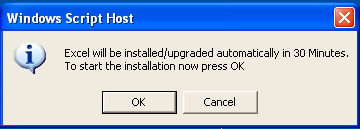
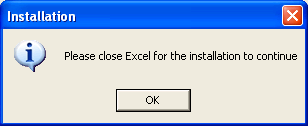
Pop-up to Postpone the advertisement or allow user to interact with advertisement

there was good Script from Jörgen Nilsson for Pop-up to Postpone the advertisement or allow user to interact with advertisement

http://ccmexec.com/2011/09/allow-the-user-to-postpone-installation-in-sccm/

Screenshots of how it will look at the client:

prerun3

If the user press Cancel:

prerun4

If the Process specified is running:

prerun5

Usage:

APP-V Full Set of training videos from MS


  • App-V Configuration Options
  • App-V with AppLocker Executable Rules
  • App-V with AppLocker Windows Installer Rules
  • Creating an App-V Virtual Application – Using the Sequencer
  • Deprovision a Virtual Application Using App-V
  • Launching an App-V Virtual Application and Reviewing Client Configuration
  • Using App-V Metering to Manage Application Licenses
  • Publishing an App-V Virtual Application Using Full Infrastructure Mode
  • Running Microsoft Office 2003 and 2007 Virtualised
  • Update a Virtual Application Using App-V
  • Using Dynamic Suiting to Create a Plug-in Dependency in Word
  • Error information 0xC1030104

    When the error i encounter i executed below and resolved this error.

    This error was appeared after i configured my SCCM PXE server not to USE DHCP ports

    wdsutil /initialize-server /REMINST:"D:\remoteinstall"

    ConfigMgr / SCCM automated basic Documentation


    Enhansoft Free Tools

    ConfigMgr / SCCM automated basic Documentation can be done with vbScript v1.32: [DOWNLOAD]
    This vbs script will create a detailed documentation for your ConfigMgr / SCCM server.

    SMS Documentation Script v1.22: [DOWNLOAD]
    This vbs script will create detailed documentation for your SMS server. 

    MOM / OpsMgr Documentation Script: [DOWNLOAD]
    This beta script will document your MOM server.

    Virtual Server Documentation Script: [DOWNLOAD]
    This beta script will document only very basic information for your Virtual Server.

    ConfigMgr / SCCM automated basic Documentation


    Enhansoft Free Tools

    ConfigMgr / SCCM automated basic Documentation can be done with vbScript v1.32: [DOWNLOAD]
    This vbs script will create a detailed documentation for your ConfigMgr / SCCM server.

    SMS Documentation Script v1.22: [DOWNLOAD]
    This vbs script will create detailed documentation for your SMS server. 

    MOM / OpsMgr Documentation Script: [DOWNLOAD]
    This beta script will document your MOM server.

    Virtual Server Documentation Script: [DOWNLOAD]
    This beta script will document only very basic information for your Virtual Server.

    How to delete an ISV Proxy Certificate


    You cannot delete an ISV Proxy certificate once it is registered with the site. All you will need to "Block" the old certificate, and then "Renew" the new certificate.


    However if you want to do out of the box then this would be for you

    -----SQl query----

    SELECT     ex.SMSID, ck.KeyData AS PublicKey, ck.KeyType, ck.Certificate, ck.ValidFrom, ck.ValidUntil, ck.Thumbprint, ex.Type, ck.ApprovalStatus AS IsApproved,
                          ck.IsRevoked AS IsBlocked, CONVERT(NVARCHAR(2048), ck.ClientIdentity) AS IssuedTo
    FROM         dbo.ClientKeyDataCertExtend AS ex INNER JOIN
                          dbo.ClientKeyData AS ck ON ex.SMSID = ck.SMSID
    WHERE     (ex.Type = 3)

    delete from ClientKeyData where SMSID = 'GUID:xxxxxx-xxxx-xxxx-xxxx-xxxxxxxxxxxx'

    ----select * from ClientKeyDataCertExtend
    delete from clientkeydatacertextend where smsid = 'GUID:xxxxxxx-xxxx-xxxx-xxxx-xxxxxxxxxxx'

    -----select * from vSMS_ISVProxyCertificateInfo

    How to Setup complete Asset Intelligent :SAM

    Your first step would be Enable AI Role

    Make sure you have enabled H/W & S/w Agent & Software metering Agent. http://technet.microsoft.com/en-us/library/cc161880.aspx

    For CAL Tracking Make Sure you Enable Audit logon Success. http://technet.microsoft.com/en-us/library/cc431373.aspx

       And

    Client Access License (CAL) data collection must be enabled in the Configuration.mof the file can be found in SCCM installed directory\Inboxes\clifiles.src\hinv
    Enable AI Classes http://technet.microsoft.com/en-us/library/bb694072.aspx
    CALCollectionType : To be set to 3 (if you want to collect the User/Device based CAL)

    CALCollectionFrequencyDays: The default value is 7 days, but a value between 0 and 90 days can be specified.

    CALSupportedWindowsVersions: you will have as default “5.0,5.2,6.0." add “5.0,5.2,6.0,6.1." for Windwos 2008r2.


    1) You need to contact your TAM to get the MVLS License File (as per Ms Documentation you can download from Ms Licensing site and can import the file, in my experience this was never worked for me at least). Once you get the Excel file, you need to save as XML Spreadsheet and then import in to SCCM Console.
    http://technet.microsoft.com/en-us/library/cc431362.aspx

    And you can see the reports for MVLS based inventory License report “License 14A – Microsoft Volume Licensing Reconciliation Report”


    2) For Third Party Licenses you need to create a sample File in the below format and save as .csv file, make sure that you need to have single worksheet/book.
    http://technet.microsoft.com/en-us/library/cc872793.aspx

    For reporting you need to look for License 15A – Third Party Software Reconciliation Report .


    3) CAL Tracking Limitations a: At this time, Configuration Manager 2007 tracks CALs only for Windows Server and Exchange Server

    If you are more interested in Software Asset/ License tracking then you must visit the Microsoft.com/SAM

    For more Products CAL Supporting you can use a free tool from MS http://www.microsoft.com/sam/en/us/map.aspx

    Net statistics workstation

    H:\>net statistics workstation
    Workstation Statistics for \\SystemName

    Statistics since 10/17/2011 11:51 AM

      Bytes received                               1886516
      Server Message Blocks (SMBs) received        11097
      Bytes transmitted                            19042298
      Server Message Blocks (SMBs) transmitted     11071
      Read operations                              1224
      Write operations                             88
      Raw reads denied                             0
      Raw writes denied                            0

      Network errors                               0
      Connections made                             40
      Reconnections made                           2
      Server disconnects                           5

      Sessions started                             0
      Hung sessions                                0
      Failed sessions                              0
      Failed operations                            0
      Use count                                    45
      Failed use count                             1

    The command completed successfully.

    H:\>net statistics
    Statistics are available for the following running services:

       Server
       Workstation

    The command completed successfully.

    H:\>net statistics server
    Server Statistics for \\SystemName

    Statistics since 10/17/2011 11:52 AM

    Sessions accepted                  1
    Sessions timed-out                 0
    Sessions errored-out               1

    Kilobytes sent                     41
    Kilobytes received                 68

    Mean response time (msec)          0

    System errors                      0
    Permission violations              0
    Password violations                0

    Files accessed                     25
    Communication devices accessed     0
    Print jobs spooled                 0

    Times buffers exhausted

      Big buffers                      0
      Request buffers                  0

    The command completed successfully.

    H:\>

    Microsoft Product Lifecycle Search - System Center Configuration Manager 2007

    http://support.microsoft.com/lifecycle/search/default.aspx?sort=PN&qid=null&alpha=System+Center+Configuration+Manager+2007&Filter=FilterNO


    Products Released General Availability Date Mainstream Support End Date Extended Support End Date Service Pack Support End Date Notes
    System Center Configuration Manager 2007 11/29/2007 1/8/2013 1/9/2018 7/14/2009  
    System Center Configuration Manager 2007 R2 11/29/2008 1/8/2013 1/9/2018    
    System Center Configuration Manager 2007 R3 12/19/2010 1/8/2013 1/9/2018    
    System Center Configuration Manager 2007 Service Pack 1 5/21/2008 Not Applicable Not Applicable 1/11/2011  
    System Center Configuration Manager 2007 Service Pack 2 10/22/2009 Not Applicable Not Applicable    
     

    SCCM Report: Server or Workstation Uptime Report


    ----This report will give you server uptime information:

    SELECT os.Caption0 AS 'Operating System', cs.Name0 AS Name, DATEDIFF(hour, os.LastBootUpTime0, ws.LastHWScan) AS 'Uptime (in Hours)', CONVERT(varchar(20),

    os.LastBootUpTime0, 100) AS 'Last Reboot Date/Time', CONVERT(varchar(20), ws.LastHWScan, 100) AS 'Last Hardware Inventory'

    FROM v_GS_WORKSTATION_STATUS AS ws LEFT OUTER JOIN

    v_GS_OPERATING_SYSTEM AS os ON ws.ResourceID = os.ResourceID INNER JOIN

    v_GS_COMPUTER_SYSTEM AS cs ON cs.ResourceID = os.ResourceID

    WHERE (os.Caption0 LIKE '%server%') AND (ws.LastHWScan <> 0) AND (cs.Name0 IS NOT NULL)

    ORDER BY Name


    ----This report will give you Workstations uptime information:

    SELECT     TOP (100) PERCENT os.Caption0 AS 'Operating System', cs.Name0 AS Name, DATEDIFF(hour, os.LastBootUpTime0, ws.LastHWScan) AS 'Uptime (in Hours)',
                          CONVERT(varchar(20), os.LastBootUpTime0, 100) AS 'Last Reboot Date/Time', CONVERT(varchar(20), ws.LastHWScan, 100) AS 'Last Hardware Inventory'
    FROM         dbo.v_GS_WORKSTATION_STATUS AS ws LEFT OUTER JOIN
                          dbo.v_GS_OPERATING_SYSTEM AS os ON ws.ResourceID = os.ResourceID INNER JOIN
                          dbo.v_GS_COMPUTER_SYSTEM AS cs ON cs.ResourceID = os.ResourceID
    WHERE     (ws.LastHWScan <> 0) AND (cs.Name0 IS NOT NULL) AND (os.Caption0 LIKE '%xp%') OR
                          (os.Caption0 LIKE '%7%') OR
                          (os.Caption0 LIKE '%vista%')
    ORDER BY Name

    SCCM Terms

    Below are the terms  used in SCCM

    http://technet.microsoft.com/en-us/library/ff977081.aspx


    Term Definition

    Active Directory Security Group Discovery method

    A Configuration Manager discovery method that searches for security group resources by polling the closest Active Directory domain controller.

    Active Directory System Discovery method

    A Configuration Manager discovery method that searches for system resources by polling the closest Active Directory domain controller.

    Active Directory System Group Discovery method

    A Configuration Manager discovery method that searches for system group resources by polling the closest Active Directory domain controller.

    Active Directory User Discovery method

    A Configuration Manager discovery method that searches for computer user resources by polling the closest Active Directory domain controller.

    Active Management Technololgy (AMT)

    An Intel networking management technology that is supported by Configuration Manager out of band management, which enables a Configuration Manager administrator to manage desktop computers independently from the Configuration Manager client or the computer operating system.

    active software update point

    The software update point for a site that interacts with Windows Server Update Services (WSUS) to configure software updates settings and manage software updates synchronization. The active software update point can accept connections from the intranet and the Internet.

    Advanced Client

    An SMS 2003 client type, supported on Windows 2000 or later operating systems, that can be assigned to a Configuration Manager mixed mode site.

    advertise

    To make a program, software update deployment, or task sequence available to clients via a collection.

    advertisement

    A Configuration Manager object that the site server sends as a notification to the management points, specifying that a program, software update deployment, or task sequence is available for clients.

    Asset Intelligence

    A Configuration Manager feature that allows administrators to inventory and manage software license usage throughout their enterprise.

    Asset Intelligence Knowledge Base

    A part of the Asset Intelligence feature that is used to produce new reports that identify and categorize deployed hardware and software assets.

    assigned management point

    The default management point at the assigned primary site for the Configuration Manager client.

    assigned program

    A program that has been advertised to a Configuration Manager collection and that clients are required to run.

    assigned site

    A site to which a Configuration Manager client is currently assigned.

    backup snapshot

    A snapshot of a site’s data, created by the Backup Configuration Manager Site Server task or by another backup utility, used during a site recovery process to restore the site’s data.

    binary delta replication

    The copying of only the changed portions of a Configuration Manager package or program file rather than the entire file when an update has been made.

    boundary

    An IP subnet, IP address range, IPv6 prefix or Active Directory site that is used to define the scope of administrative control for a Configuration Manager site. Boundaries are used by the site to determine which distribution points are closest for retrieving content and used by the client to determine which site it should be assigned to.

    branch distribution point

    A Configuration Manager site system that has the role of storing package source files and is designed to be located in a distributed location with limited network bandwidth or a limited number of clients.

    central site

    The primary site at the top of the Configuration Manager hierarchy, to which all other sites in the system report their inventory, site configurations, software metering data, and status.

    collection-limited query

    A query scoped to include only resources that are in a specified collection.

    component server

    A Configuration Manager site system role that is filled by any site system running a component installed by Configuration Manager Site Component Manager. The only site system that is not a component server is the distribution point.

    Configuration Manager health state reference

    A reference that is published to Active Directory to refer to Configuration Manager NAP policy and stored for the System Health Validator (SHV) to use in determining policy compliance.

    Configuration Manager hierarchy

    A collection of one or, typically, more Configuration Manager sites bound together via child-parent relationships. The site at the top of the hierarchy is known as the central site.

    Configuration Manager site

    A collection of clients and Configuration Manager site systems that are bounded by a group of subnets, such as IP subnets or an Active Directory site, and which are specified by a Configuration Manager administrator as a site.

    Configuration Manager site database

    A Microsoft SQL Server database that stores Configuration Manager site data, such as discovery data, configuration data, status messages, and inventory data. Every primary site has a Configuration Manager site database. The server supporting the Configuration Manager site database is automatically assigned the site database server role.

    Configuration Manager software distribution

    A Configuration Manager feature that automatically distributes software programs to Configuration Manager client computers.

    Configuration Manager software inventory

    A Configuration Manager feature that automatically gathers information about software on clients in a Configuration Manager site.

    Configuration Manager software metering

    The Configuration Manager feature that monitors software usage on client computers.

    Courier Sender

    A Configuration Manager communication mechanism that enables you to create and send package information to another Configuration Manager site through non-network channels.

    DCM digest

    A predefined XML schema used by Configuration Manager 2007 that is used with the desired configuration management feature to create and validate configuration baselines and configuration items.

    DDR

    See Other Term: discovery data record (DDR)

    default management point

    The active management point for a site, which could also be an IP address of a Network Load Balancing (NLB) cluster that combines several management points.

    delta inventory file

    A file generated after Configuration Manager performs a complete inventory, containing only hardware or software properties that were added, removed, or changed since the previous inventory cycle.

    delta replication

    The copying of only the changed Configuration Manager package or program file rather than the entire package or program when an update has been made.

    desired configuration management

    A Configuration Manager feature that provides a set of tools and resources for assessing and tracking configuration compliance of client computers in the enterprise.

    device management point

    A Configuration Manager site system that communicates with mobile device clients and that must be hosted on a Configuration Manager management point.

    direct membership rule

    A collection membership rule that targets an individual resource, such as a user, user group, or a Configuration Manager client.

    discovery data

    A set of properties collected by a discovery method that reflects the attributes of a Configuration Manager resource.

    discovery data record (DDR)

    The file format (.ddr) and the actual file that is used by Configuration Manager to report discovery data to a Configuration Manager site database.

    distribution point

    A site system that has the role of storing package source files. Clients contact distribution points to obtain source files when they run advertised programs, advertised task sequences, or deployed software updates.

    distribution point group

    A set of distribution points that you can manage as a single entity.

    fallback status point

    A Configuration Manager site system role that helps you to monitor client installation and to identify the clients that are unmanaged because they cannot communicate with their management point.

    global roaming

    The capability of roaming to lower level sites, higher level sites, and sibling sites. This roaming method requires Active Directory Domain Services and the Configuration Manager Active Directory schema extensions.

    Heartbeat Discovery method

    A Configuration Manager discovery method that is used to update data discovery records (DDRs) for each Configuration Manager client on a set schedule to ensure that they remain current in the site database.

    hierarchy branch

    A group of Configuration Manager sites, interconnected via child/parent site connections, that report up to the same primary site.

    IDMIF file

    A type of Management Information Format (MIF) file that can be used to add new architectures or updates to existing architectures in the Configuration Manager site database to accommodate custom hardware inventory properties.

    Internet-based client management

    A feature in Configuration Manager that allows you to manage computers that have the Configuration Manager client agent but do not connect into the network through a VPN or dial-up connection.

    Internet-based site system

    A site system role that allows connections from clients when they are managed over the Internet.

    Internet-based software update point

    The Internet-based software update point for a site that interacts with Windows Server Update Services (WSUS) to configure software updates settings and manage software updates synchronization and that accepts communication only from client computers on the Internet.

    maintenance window

    A period of time, defined by administrators, when changes can be made on the systems that are members of a Configuration Manager collection.

    Managed Object Format (MOF)

    The file type, based on the Interface Definition Language (IDL), that describes management information. The MOF syntax is a way to describe object definitions in textual form.

    management controller

    The hardware and firmware component on desktop motherboards that supports out of band management in Configuration Manager 2007 SP1 and later.

    Management Information Format (MIF) file

    The file type (.mif) that can be used to modify the Configuration Manager database by creating architectures, object classes, and attributes.

    management point

    The Configuration Manager site system role that serves as the primary point of contact between Configuration Manager clients and the Configuration Manager site server.

    membership rule

    The criteria by which Configuration Manager evaluates whether a resource belongs to a particular collection. A membership rule can be a query, or it can explicitly specify a resource.

    MIF file

    See Other Term: Management Information Format (MIF) file

    mixed mode

    An operational mode of Configuration Manager 2007 that provides backward compatibility with SMS 2003 sites and provides a basic level of security for organizations that cannot meet the PKI requirements for native mode.

    MOF

    See Other Term: Managed Object Format (MOF)

    NAP-capable client

    A Windows-based client that supports Network Access Protection.

    native mode

    A security-based operational mode setting in Configuration Manager, where the site server signs all policies and where site systems require mutually authenticated SSL connections to client computers.

    Network Discovery method

    The Configuration Manager discovery method that enables the Configuration Manager administrator to discover any network resources that are IP addressable.

    NOIDMIF file

    A custom Management Information Format (MIF) file that Configuration Manager administrators can use to modify or append object classes and properties to existing client inventory data.

    operating system deployment

    A Configuration Manager feature that allows you to create operating system images and deploy those images to target computers.

    out of band management

    A feature in Configuration Manager 2007 SP1 and later that allows computers to be managed outside standard management channels by connecting to a supported management controller. This management channel is independent from the Configuration Manager client and the operating system.

    out of band service point

    A site system for Configuration Manager 2007 SP1 and later that has the role of provisioning computers for out of band Management.

    package

    A Configuration Manager object that contains the files and instructions for distributing software, software updates, boot images, operating system images, and drivers to Configuration Manager client computers.

    package definition file

    An ASCII text file that contains predefined software distribution objects, such as programs and packages to be used for software deployment.

    package refresh

    A Configuration Manager software distribution operation in which the compressed package source files are redistributed to distribution points to repair a package.

    package source directory

    A directory containing Configuration Manager package source files that are used for package distribution.

    package source file

    In a Configuration Manager package, the software file or files that are being deployed to clients.

    package update

    A Configuration Manager software distribution operation in which updated package source files are recompressed, the package version is incremented, and then the package is redistributed to distribution points.

    preferred sender

    The sender specified in the package properties to use when sending the package to a child site.

    primary site

    A Configuration Manager site that is configured to store its information in a SQL Server database.

    protected distribution point

    A Configuration Manager distribution point that has boundaries configured to prevent clients outside the boundaries from retrieving packages.

    proxy management point

    A secondary Configuration Manager site management point that services the Configuration Manager clients that are within its boundaries.

    PXE service point

    A Configuration Manager site system that initiates a PXE operating system deployment process. The PXE service point responds to network PXE boot requests and determines the appropriate actions to take.

    remediation server

    A server that is used to update the computer state by providing software updates, new antivirus signatures, additional intrusion detection signatures, and so on.

    Report Viewer

    A reporting tool, accessible through the Configuration Manager console, that uses your Web browser as a report viewer.

    reporting point

    A Configuration Manager site system that hosts the Report Viewer component for Web-based reporting functionality.

    reporting services point

    In Configuration Manager 2007 R2 and later, a site system role that enables administrators to use Microsoft SQL Server Reporting Services reports from the Configuration Manager console.

    resident management point

    The default Configuration Manager management point of the site in which a globally roaming client is currently located.

    Resource Explorer

    A Configuration Manager console feature that displays the hardware and software inventory that has been collected from clients.

    secondary site

    A Configuration Manager site that does not require a dedicated SQL Server database, is always a child of a primary site, and is administered solely through its parent or through another primary site above it in the Configuration Manager site hierarchy.

    security context

    The Configuration Manager security attributes or rules that are currently in effect.

    send request file

    A Configuration Manager file with instructions that a sender uses to connect to and transfer data to a destination.

    server locator point

    A Configuration Manager site system that completes site assignment and can locate management points for Configuration Manager clients when clients cannot retrieve that information from Active Directory Domain Services or other mechanisms.

    service component

    A Configuration Manager program that runs as a service that can be started and stopped through the Services icon in Control Panel or the Computer Management administrative tool.

    site assignment

    The process of including selected resources in a Configuration Manager site.

    site assignment rules

    A group of site boundaries that a Configuration Manager administrator defines for a Configuration Manager site.

    site code

    A three-character code that Configuration Manager uses to uniquely identify a Configuration Manager site. The site code is specified during the site installation and cannot be changed after installation.

    site control file

    An ASCII text file that contains the settings of a Configuration Manager site.

    site database server

    A Configuration Manager site system role assigned to the computer that hosts the Configuration Manager site database (a SQL Server database). The computer might or might not be the site server.

    site server

    The Configuration Manager site system role assigned to the server on which Configuration Manager Setup has been run successfully. When Configuration Manager is installed on a computer, that computer is automatically assigned the site server role. Every Configuration Manager site has one site server.

    site system

    A server that provides Configuration Manager functionality to a Configuration Manager site.

    SMS Executive

    The primary Configuration Manager service, which accesses and updates the database and manages many different process threads.

    SMS Installer

    An SMS tool that enables you to create customized, self-extracting, software installation files.

    SMS Provider

    A WMI provider that allows both read and write access to the Configuration Manager 2007 site database.

    software metering

    A Configuration Manager feature that monitors program usage on client computers.

    software update point

    A Configuration Manager site role that is configured on a computer running WSUS.

    stand-alone site

    A Configuration Manager site with no parent sites and no child sites and which is always displayed as a central site on the site properties.

    standard distribution point

    A Configuration Manager distribution point that has the role of storing package source files and has not been specifically designated as a branch distribution point.

    Standard Sender

    A Configuration Manager communication mechanism that enables you to create and send package information to another Configuration Manager site over standard network channels.

    state message

    A message type used to identify at what stage a Configuration Manager client process succeeded, failed, or stopped.

    state migration point

    A Configuration Manager site system role that stores user state data while a computer is being migrated to a new operating system.

    status filter rule

    A filtering rule that controls how status messages are reported and viewed.

    status message

    A message generated by a Configuration Manager component and viewed in the Status Message Viewer. Status messages differ from operating system events in that they represent the flow of activity within a Configuration Manager site.

    status message threshold

    The limit that defines when the summary status for a component or site system should indicate OK, Warning, or Critical status.

    Status Message Viewer

    A tool in the Configuration Manager console that is used to browse the status messages in the Configuration Manager site database.

    status summarizer

    Consolidates the data generated by Configuration Manager status messages into a succinct view of the status of a component, a server, a package, or an advertisement.

    status summary

    A data set that is generated by the Configuration Manager status summarizer.

    System Health Validator point

    The site system role assigned to the Network Policy Servers for a Configuration Manager 2007 site.

    task sequence

    The mechanism in Configuration Manager for performing multiple steps or tasks on a client computer at the command-line level without requiring user intervention.

    thread component

    A Configuration Manager program that runs as a thread of the SMS Executive service component. A thread component can be started and stopped through the SMS Service Manager.

    trusted root key

    An encryption key used in Configuration Manager to help clients identify valid management points.

    unmanaged client

    A client that is not communicating with its assigned site in the Configuration Manager hierarchy and therefore cannot receive policy or upload inventory data.

    wake-up packet

    A packet sent by Configuration Manager's primary site server when using Wake On LAN to bring targeted computers out of a sleep state so that they can perform a management function, such as installing a mandatory software update.

    Native Mode Client installation command line - example

    Here is a sample command line for my lab site MED


    Ccmsetup.exe /mp:medv-cm.medlab.com /native:FALLBACK CCMHOSTNAME=medv-cm.medlab.com SMSSITECODE=MED FSP=medv-cm.medlab.com


    issue found after following the document http://technet.microsoft.com/en-us/library/cc872789.aspx on 2008 Servers only but worked fine for 2003.

    SMS_POLICY_PROVIDER saying “SMS Policy Provider has failed to sign one or more policy assignments. It will retry this operation automatically.”


    [NewRequest]

    FriendlyName = "ConfigMgr Site Signing ABC"

    Subject = "CN=The site code of this site server is ABC"

    MachineKeySet = True

    KeyLength = 2048

    [RequestAttributes]

    CertificateTemplate = ConfigMgrSiteServerSigningCertificate

    Deployment Tools

    image

    Windows 7 Imagining – Hardware Independent Image

    Every image of windows 7 is hardware independent Image, unlike windows XP the concept has changed.


    Here are some Good postings to do this


    Building a Standard Image of Windows 7: Step-by-Step Guide: http://technet.microsoft.com/en-us/library/ee523217%28WS.10%29.aspx

    How to create a Hardware independent Image? :  http://ashleystechblog.blogspot.com/2009/03/how-to-create-hardware-independent.html


    and one more http://theitbros.com/sysprep-a-windows-7-machine-%E2%80%93-start-to-finish

    Windows 7 Education - BDD

    Here is the link for windows 7 Pre and Post deployment trainings available where we can communicate with the end users and IT Help Desk.

    http://www.microsoft.com/technet/desktopdeployment/bdd/elf/Welcome.aspx

    How to exclude SCCM Client Push on Specific Systems or Ou’s?

    The common question i get from my dears is how to prevent installing the client Push deployment on few business critical systems or some ou’s.. The Answer is you can achieve this in multiple ways..


    1)  by exclude that OU from discovery

    2) Don’t use Client PUsh

    3) Remove Client Push account or site server account from the local administrators Group on those systems

    4) Create a file called ccmsetup on all those systems (Path %windir%\system32)


    Ok for the first option here are the steps

    1. Open the Windows Registry Editor on the Configuration Manager 2007 site server that hosts the site that you want to exclude a computer from joining.

    2. Locate the SMS_DISCOVERY_DATA_MANAGER sub-key by browsing to the following path:

    · For a 32-bit operating system: HKEY_LOCAL_MACHINE/Software/Microsoft/SMS/Components/SMS_DISCOVERY_DATA_MANAGER

    · For a 64-bit operating system: HKEY_LOCAL_MACHINE/Software/Wow6432Node/Microsoft/SMS/Components/SMS_DISCOVERY_DATA_MANAGER

    3. To enter the name of the computers you want to exclude, double-click the key ExcludeServers to open the Edit Multi-String window.

    4. In the Edit Multi-String window, specify the NetBIOS name of each computer you want to exclude. Press the Enter key after typing each computer name to ensure that each computer name appears on a separate line.

    5. After you have entered the computer names of computers you wish to exclude, click OK. Close the Registry Editor window

    Best Web links for SCCM Troubleshooting

    http://blogs.technet.com//b/sudheesn/archive/2010/05/31/troubleshooting-sccm-part-i-client-push-installation.aspx
    http://blogs.technet.com//b/sudheesn/archive/2009/07/16/unable-to-open-the-sccm-console.aspx
    http://blogs.technet.com//b/sudheesn/archive/2011/06/08/administartive-checklist-for-configuration-manager-2007.aspx
    http://blogs.technet.com//b/configurationmgr/archive/2011/03/06/3272150.aspx
    http://blogs.technet.com//b/sudheesn/archive/2011/02/05/audit-collector-filter-gui-version-of-adtadmin-exe.aspx
    http://blogs.technet.com//b/sudheesn/archive/2011/02/01/troubleshooting-part-vi-software-distribution.aspx
    http://blogs.technet.com//b/sudheesn/archive/2011/02/01/troubleshooting-part-v-heartbeat-discovery.aspx
    http://blogs.technet.com//b/sudheesn/archive/2011/02/01/troubleshooting-part-iv-software-inventory.aspx
    http://blogs.technet.com//b/sudheesn/archive/2010/11/10/troubleshooting-sccm-part-iii-software-updates.aspx
    http://blogs.technet.com//b/sudheesn/archive/2010/11/08/move-the-site-database-in-sccm-2007-r2.aspx
    http://blogs.technet.com//b/sudheesn/archive/2010/05/31/troubleshooting-sccm-part-ii-hardware-inventory.aspx
    http://blogs.technet.com//b/sudheesn/archive/2010/05/31/troubleshooting-sccm-part-ii-hardware-inventory.aspx
    http://blogs.technet.com//b/sudheesn/archive/2010/05/31/troubleshooting-sccm-part-i-client-push-installation.aspx
    http://blogs.technet.com//b/sudheesn/archive/2010/05/31/troubleshooting-sccm-part-i-client-push-installation.aspx
    http://blogs.technet.com//b/sudheesn/archive/2010/05/31/troubleshooting-sccm-part-i-client-push-installation.aspx
    http://blogs.technet.com//b/sudheesn/archive/2010/02/19/how-to-create-a-collection-of-computers-that-has-not-been-inventoried-for-more-than-30-days.aspx
    http://blogs.technet.com//b/sudheesn/archive/2009/12/30/managing-workgroup-clients-in-sccm.aspx
    http://blogs.technet.com//b/sudheesn/archive/2009/08/10/3270342.aspx
    http://blogs.technet.com//b/configurationmgr/archive/2009/08/10/3272150.aspx
    http://blogs.technet.com//b/sudheesn/archive/2009/07/16/sms-state-system-component-showing-errors-in-site-server-hosted-in-a-windows-2008-server.aspx
    http://blogs.technet.com/b/smsandmom/archive/2007/11/30/sms-2003-finding-overlapping-boundaries.aspx

    What we have with MDOP ?

    image

    Where is RSS for SCCM?

    http://social.technet.microsoft.com/Forums/en-US/configmgrgeneral/threads?outputAs=rss

    Where is MCP ?

    Where is MCP ?


    Now MCP = MCTS

    Benefits of Internet Explorer - IE 8


  • Security: Features such as the new Smart Screen filter and other built-in security features protects against malware and deceptive and malicious websites that can compromise data, privacy, and identity.


  • Reliability: Features such as Automatic Crash Recovery prevents the loss of work and productivity in the unlikely event of browser crashes or hangs. This builds on the Loosely-Coupled Internet Explorer feature to provide new crash recovery capabilities such as tab recovery, which minimizes interruptions to your browsing sessions.

  • Manageability: The manageability features embedded throughout the browser makes Internet Explorer 8 the most manageable browser, with close to 1500 Group Policies, all of which can be centrally managed.

  • Usability: User-centric features make the experience of using the browser faster and easier. For example, the Internet Explorer 8 address bar combines your browsing history with detailed suggestions to help you get where you want to go faster.
  • Benefits of Internet Explorer - IE 8


  • Security: Features such as the new Smart Screen filter and other built-in security features protects against malware and deceptive and malicious websites that can compromise data, privacy, and identity.


  • Reliability: Features such as Automatic Crash Recovery prevents the loss of work and productivity in the unlikely event of browser crashes or hangs. This builds on the Loosely-Coupled Internet Explorer feature to provide new crash recovery capabilities such as tab recovery, which minimizes interruptions to your browsing sessions.

  • Manageability: The manageability features embedded throughout the browser makes Internet Explorer 8 the most manageable browser, with close to 1500 Group Policies, all of which can be centrally managed.

  • Usability: User-centric features make the experience of using the browser faster and easier. For example, the Internet Explorer 8 address bar combines your browsing history with detailed suggestions to help you get where you want to go faster.

  • Adobe Updates Deploy with New Updated Tool

    Thanks to stealthpuppy all rights & credits go’s to stealthpuppy and his blog .This article published in http://blog.stealthpuppy.com/deployment/deploying-adobe-reader-x/ , You can read from there

    Update 20 June 2011: updated for Reader 10.1. Release notes for 10.1 can be found here.

    Adobe Reader X is here and with the new protected mode feature to improve security you should be considering your deployment plans now.

    Note: These instructions are based on the US English version of Reader, so you may need to adjust some specifics to suit your environment and language.

    Licensing Your Deployment

    Although Adobe Reader is free you’ll need to agree to and obtain a license to distribute it in your own environment. Obtaining a license is simple, you’ll just need to answer a few questions such as the number of copies, how you will distribute Reader, which platforms and some information on your company including contact information. The same license can be used for distributing Flash player and Adobe AIR. To apply for the license go to the Adobe Runtimes / Reader Distribution License Agreement.

    Obtaining the Adobe Customization Wizard

    Unfortunately Adobe doesn’t use the same installer across all of their products – the installers for the Acrobat products are different to the Creative Suite products. For anyone who’s attempted deployment of the CS products would probably consider this a good thing.

    To start customizing Reader before deploying, you’ll need access to the Adobe Customization Wizard. The Customization Wizard X hasn’t changed much since the Customization Wizard 9, so if you have experience deploying Adobe Reader 8 or Reader 9, you’ll be comfortable customizing and deploying the new version.

    The Adobe Customization Wizard X should be available from here – Adobe Customization Wizard X. Otherwise you can use this direct download link: Adobe Customization Wizard X. An FTP site is also available – Adobe FTP site.

    The Customization Wizard should be installed to an administrative workstation and it will allow you to create a custom Windows Installer transform that can configure the Reader installation, including settings to:

    • Optimize the behavior of the installer by including silent installation, multilingual, and custom setup choices
    • Remove previous versions of Acrobat and Reader
    • Suppress the EULA, registration prompts, and the Getting Started window
    • Customize key application preferences — turn off automatic updates, add and set default job options, and customize collaboration and security settings
    • Remove shortcuts from the desktop and the Start menu
    • Edit each Adobe Acrobat application’s registry and installer tables
    • Customize file attachment handling within PDF files, including specifying which file types you want to block
    • Add or edit files that will be installed, including customized JavaScript or plug-ins
    • Preconfigured and lock Enhanced Security settings

    Downloading the Reader X MSI

    When creating a custom installer for Reader, always start with the latest version which you may need to obtain from the Adobe Reader download page. For an installer that you can extract and doesn’t include Google Chrome or Toolbar download the EXE installer from Adobe’s FTP site: ftp://ftp.adobe.com/pub/adobe/reader/win/10.x/10.1.0

    Note: if you need to download the latest installer, always grab a copy from the Adobe site to guarantee you have a source you can trust

    Once you’ve downloaded the Reader installer, extract the setup files so that you can create a custom transform file. To extract, run the following command line:

    AdbeRdr1010_en_US.exe.exe -nos_o"C:\Folder" -nos_ne

    Replace C:\Folder with the path to a local folder. If you don’t specific the -nos_o switch, the files will be extracted here:

    • %ProgramData%\Adobe\Setup (Windows Vista and above)
    • %ALLUSERSPROFILE%\Application Data\Adobe\Setup (Windows XP / Windows Server 2003)

    Once extracted, you should have the following files required for Reader deployment:

    • ABCPY.INI
    • AcroRead.msi
    • Data1.cab
    • setup.exe
    • Setup.ini

    Creating a custom Transform for Reader X

    Here I’ll step through creating a custom installation for Reader, providing some recommended settings for your deployment and add links to further information that you may need to consider for your specific environment.

    Step 1 Personalization Options: Open the Customization Wizard, click File / Open Package… and browse to AcroRead.MSI located in the folder that contains the extract Reader setup files. You can change the installation path if required:

    Adobe Customization Wizard - installation path

    Step 2 Installation Options: there a few options to consider here:

    • Default viewer for PDF files – if you are installing both Acrobat and Reader on the same machine, which application do you want to open PDF files by default.
    • Enable Optimization – Windows Installer will defrag the installation post install, leave this option enabled. [Windows Installer property: ENABLE_OPTIMIZATION]
    • Enable Caching of installer files on local hard drive – a copy of the Reader install files will be stored on the target machine ( in %ProgramFiles%\Adobe\Reader 10.0\Setup Files or %ProgramFiles(x86)%\Adobe\Reader 10.0\Setup Files). If you are deploying Reader with a deployment solution or virtualizing Reader, I recommend disabling this option. [Windows Installer property: ENABLE_CACHE_FILES]
    • Run installation – run the installer Unattended by default unless your specific deployment requires the installer to run completely silently (you can control this on the command line as well).
    • If reboot required at the end of installation – choose Suppress reboot and control reboots with an external process (such as a script or your deployment solution).

    Adobe Customization Wizard - installation options

    Step 3 Files and Folders: additional files (such as a JavaScript file to restrict menu items) can be added here:

    Adobe Customization Wizard - files and folders

    Step 4 Registry: add additional Registry values here to control the Reader installation. You can browse the local computer’s Registry to make adding entries simpler.

    There are two edits I recommend making – browse to Destination Computer / HKEY_LOCAL_MACHINE\Software\Microsoft\Windows\CurrentVersion\Run and modify these startup items, if they exist:

    • Adobe ARM
    • Adobe Reader Speed Launcher

    Right-click each of these entries and choose Modify. Set Action to Remove value. This will prevent the installer from adding these entries and starting unnecessary processes at user logon. This step is very important for Terminal Server / Remote Desktop Session Host environments to reduce the processes that will run in each user’s session.

    customization01

    Step 5 Shortcuts: for whatever reason, Adobe deems in necessary to add a superfluous shortcut for Reader to the desktop. Don’t forget to remove that here – if you don’t remove the shortcut in the transform, it will be created when you patch Reader.

    Adobe Customization Wizard - shortcuts

    Step 6 Server Locations: the Server Locations settings allow you to configure additional server location paths to ensure source resiliency for the Windows Installer package.

    Adobe Customization Wizard - server locations

    Step 7 Security: further information on Adobe Reader and Acrobat security can be found here: Acrobat 9 Security Administration Guide. Options to consider include:

    • Enhanced Security Settings: Standalone and Browser (choose Enable & Lock)
    • Prevent end-user to add trusted Files and Folders
    • Prevent end-user to add trusted Hosts

    Adobe Customization Wizard - security

    Step 8 Digital Signature: the Digital Signature settings allow you to specify the security options (verification, creation, reasons) for digital signatures. Read more about Digital Signatures in the security guide and this document: Digital Signature Validation Cheat Sheet

    Adobe Customization Wizard - digital signatures

    Step 9 EULA: here you can suppress the display of the End User License Agreement when the user first launches Reader. [Windows Installer property: EULA_ACCEPT]

    Adobe Customization Wizard - EULA

    Step 10 Online and Acrobat.com Features: access to several features can be controlled here:

    • Disable all updates: this will prevent the Adobe Updater from running automatically (but won’t prevent it from installing). The Check for Updates menu option will also be removed.

    Warning: It is extremely important to disable Adobe Updater on shared systems such as Terminal Server/Remote Desktop Servers – a standard user can initiate a reboot of a computer if Updater applies a Reader update. This is because the update is applied using Windows Installer which runs in the System context.

    • Browser integration can be controlled here – you can force Reader to open PDFs outside of the browser rather than embedded in the browser window
    • Various menu items and features (such as Purchase Adobe Acrobat, Digital Editions) can be disabled
    • The Product Improvement Program can be disabled
    • The Acrobat.com integration in Reader can be disabled

    Adobe Customization Wizard - online features

    Step 11 Comments and Forms: control and set options for comments in PDFs and forms.

    Adobe Customization Wizard - comments

    Step 12 File Attachments: control the launching of file types from PDF documents. You may want to set this option:

    • Default Action for Unspecified File Types: Never launch files of Unspecified Types

    Adobe Customization Wizard - file attachments

    Step 13 Launch Other Applications: the Launch Other Applications settings allow you to specify additional applications to be installed with Reader.

    Adobe Customization Wizard - launch other applications

    Step 14 Direct Editor: if you want to make further edits to the transform file you can do so here; however I often prefer to save the transform and open it with a 3rd party MSI editor.

    Adobe Customization Wizard - direct editor

    To disable the Adobe Acrobat Update Service introduced with Reader 10.1, navigate to the ServiceInstall table and take one of two actions

    • Drop the row ServiceInstall1 to prevent the install of the service
    • Change the value of StartType to 3 (manual) or 4 (disabled)

    Disabling Additional Menu Items

    After creating a custom installation there are a few menu items (less than previous versions) that you may want to remove for end-users:

    Adobe Reader X - additional menu items

    These menu items are:

    • Help / Online Support… / Knowledge Base
    • Help / Online Support… / Adobe Support Programs…
    • Help / Online Support… / Adobe User Community…
    • Help / Online Support… / Accessibility Resource Center…
    • Help / Online Support… / Generate System Report…
    • Help / Repair Adobe Reader Installation

    Warning: It is extremely important to remove the Repair Adobe Reader Installation menu item on shared systems such as Terminal Server/Remote Desktop Servers – a standard user can initiate a reboot of a computer if the repair kicks in. This is because the repair is applied using Windows Installer which runs in the System context.

    Just like previous versions, the only way to disable certain UI elements such as menu items and toolbars is to use JavaScript. This is a two step process – first we need to find out the name of the items we want to disable. To do that you will need to place some JavaScript in a file in the JavaScripts folder where Reader is installed. For example this on x64 Windows, place the file here: %ProgramFiles (x86)%\Adobe\Reader 10.0\Reader\Javascripts. Add the following code into the file and save it as ListItems.js

    //ListItems.js
    //Open Javascript Console
    console.show();
      
    //List Toolbar Buttons in the Console
    var toolbarItems = app.listToolbarButtons()
    for( var i in toolbarItems)
    console.println(toolbarItems + "\n")
      
    //List Menu Items in the Console
    var menuItems = app.listMenuItems()
    for( var i in menuItems)
    console.println(menuItems + "\n")

    When you start Reader a list of the user interface elements will be displayed:

    JavaScriptDebugger

    The list is quite long, but you can use it to control the display of both menu items and buttons.

    To hide the menu items listed above, save the following code in HideItems.js in the same JavaScripts folder. When Reader is run, the JavaScript will be executed and the items removed.

    //HideMenu.js
      
    // [Help - Repair Adobe Reader Installation]
    app.hideMenuItem("DetectAndRepair");
      
    // [Help - Online Support]
    app.hideMenuItem("OnlineSupport");
      
    // [Help - Online Support - Knowledge Base]
    app.hideMenuItem("KnowledgeBase");
      
    // [Help - Online Support - Adobe Support Programs]
    app.hideMenuItem("AdobeExpertSupport");
      
    // [Help - Online Support - Adobe User Community]
    app.hideMenuItem("AdobeUserCommunity");
      
    // [Help - Online Support - Accessibility Resource Center]
    app.hideMenuItem("AccessOnline");
      
    // [Help - Online Support - Generate System Report]
    app.hideMenuItem("SystemInformation");

    To deliver the script with the Reader package, use the Files and Folders section in the Customization Wizard. Add the files to Destination Computer / ProgramFilesFolder / Adobe / Reader 10.0 / Reader / JavaScripts (see Step 3 above).

    Enforcing Protected Mode

    Adobe Reader X Protected Mode will assist in reducing the potential security threats when opening or viewing PDF files, so it’s a feature you’ll want to ensure remains enabled on client computers. However, by default, users can turn this feature off – this option is available in the Preferences dialog box under General:

    In the user’s context, Protected Mode is controlled with the following Registry value:

    • Key: HKCU\Software\Adobe\Acrobat Reader\10.0\Privileged
    • Value: bProtectedMode
    • Type: REG_DWORD
    • Data: 1

    Fortunately, Protected Mode can also be enforced per-machine instead by setting this Registry value:

    • Key: HKLM\SOFTWARE\Policies\Adobe\Acrobat Reader\10.0\FeatureLockDown
    • Value: bProtectedMode
    • Type: REG_DWORD
    • Data: 1

    With this set, users will be unable to disable Protected Mode. Use the Registry option in the Adobe Customization Wizard (covered in step 4 above) to set this value in your deployment package.

    With the release of Reader 10.1, Protected Mode is now supported on Terminal Servers/Remote Desktop Servers.

    Finding more Reader Preferences and Policies

    To find the complete list of preferences for Reader and Acrobat you should refer to the Administrator’s Information Manager. This tool also contains the Reader and Acrobat Admin and Security guides.

    The Administrator’s Information Manager (AIM) is an auto-updating and customizable AIR application containing the Preference Reference. AIM also includes and a growing list of other resources of interest to administrators in enterprise settings.